Make a dated copy of your shift
Close the game. Paste %USERPROFILE%\AppData\LocalLow\GoldenHorn\PotatoPlease into the File Explorer address bar. PCGamingWiki identifies the saves subfolder as containing autosave.sav and numbered manual files such as slot_1.sav. It also records profile.json in the parent folder as holding lifetime totals, endings and earned achievements. Copy the saves folder and profile.json into a separate dated folder. Leave the originals where they are and check that the copy contains the manual slot you meant to preserve.
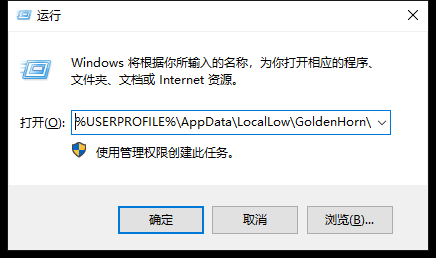
An alternative way to open the same folder is Windows key + R. Paste the full path above into Open and press Enter; it works without typing your account name. If Windows cannot find it, check that this Windows account has actually run the game and that LocalLow, rather than Local or Roaming, is in the path. Before testing anything with a save, sort the copy by Date modified and compare it with the time of your last manual save. Do the comparison on the copy; moving files out of the active folder changes what the game sees on its next launch.
Gather the right logs
Golden Horn Studios asks for Player.log and Player-prev.log from the game-data folder. For a crash it specifically requests Player-prev.log. Take a copy before repeatedly relaunching the game. Write down the version shown in the main menu, PC specifications and the last action before the failure. If you can reproduce it, include the steps and a screenshot or short video.
Build a crash packet while the failure is still fresh: copy both logs to the same dated backup, note which one was current when the crash happened, and keep the original save untouched. For a repeatable fault record just the shortest route from a known save to the failure. For an intermittent one, include the last successful action and say that a second attempt behaved differently. That gives the developer a useful dividing line even when there is no crash dialog.
Choose the reporting route
If you can still reach the pause menu, the studio recommends checking Troubleshooting first. You can post a bug report in the official Bug Reports forum or email support@goldenhornstudios.com. Keep the dated copy of the affected shift. The automatic backup introduced in hotfix 1.0.1 applies when converting older saves to a new format; a manual copy preserves the particular state you want the studio to investigate.
Use a subject someone can reproduce, for example “Loading slot 1 after the storm leaves the HUD empty”. Give the save point, the action, the expected screen and the screen you got. State whether this happens on that slot only. A screenshot of the wrong screen and the relevant log belong together. Inspect attachments for personal paths or names before posting to a public thread; use the developer’s private email for the actual save and logs if needed.

Sources
- Golden Horn Studios · How to report a bug steamcommunity.com
- PCGamingWiki · Save-file inspection and profile location www.pcgamingwiki.com
- Golden Horn Studios · Hotfix 1.0.1 steamcommunity.com