Isolate an extra movement device
The developer traced unexpected forward walking and broken WASD input to cases involving steering wheels, pedals, flight sticks or virtual joystick drivers. The correction shipped in 1.0.1. On the updated game, stand still with your hands off both devices, then try each movement direction. If the symptom persists, repeat once with the extra physical controller disconnected and record the difference. No driver removal is needed for that comparison.
Work from the same loaded position. With keyboard and mouse alone, release every key and watch the floor or a doorway for several seconds; then press W and S individually. Relaunch with the wheel or pedals connected and repeat. If drifting or lost movement returns only with that device attached, include the model and whether a virtual joystick driver is present in the report. If the view rotates but your position does not change, describe camera rotation separately from forward movement.
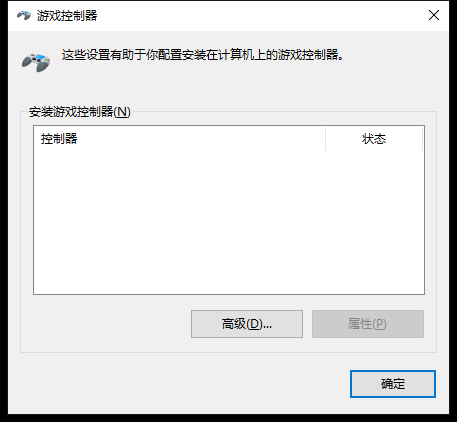
To see which game controllers Windows lists, press Windows key + R, type joy.cpl and press Enter. Note the list before disconnecting the peripheral, then reopen the panel to see what changed. A blank list is possible when no supported controller is attached. This check records the Windows side of the comparison; test the drift in game after each configuration.
Rebind one action first
A duplicate controls list could prevent certain keys from being rebound. After updating, open the controls list, change one action and try its new key before changing the rest of the layout. A report naming the action, old key and new key is more actionable than a screenshot of the entire bindings screen. The store also lists full controller support and Steam Input support.
If the rebinding screen itself stops accepting input, the developer told one player who could not cancel with Escape to restart the game. After relaunch, check whether that one changed key was retained before editing another binding. If a new key works at the workbench but not in the menu, name both contexts. Save a picture of the original layout to make reversing one change straightforward.
Compare the camera with a letter
Invert Y now changes camera look. Peeling, aiming at a letter and playing darts use cursor-like movement and continue to follow the mouse or stick in the usual direction. To check the setting, look up and down in the room, then move over a letter. Those two actions can legitimately move differently with the same setting.
Use a fixed room reference, such as the top of the doorframe. Toggle Invert Y, point the camera at that reference and move the mouse upward once. Next open a letter and move the pointer toward its top edge. If the camera test changes direction and the pointer stays intuitive, the 1.0.1 behavior is present. If the camera test never changes, include whether you used a mouse, right stick or a remapped input layer.
Sources
- Golden Horn Studios · Hotfix 1.0.1 steamcommunity.com
- Potato Please · Steam store features and requirements store.steampowered.com
- Developer response to a player stuck on the rebinding screen steamcommunity.com