Publishing and monetizing an edited run
A creator described the footage they intended to upload: their own playthrough, edited with their voice and reactions. Golden Horn Studios approved that use and specifically said YouTube monetization was permitted. If your video fits that description, keep the linked developer reply with your project notes. The reply answers the question about publishing the game footage. You can check any separate restriction on the finished upload in YouTube Studio.
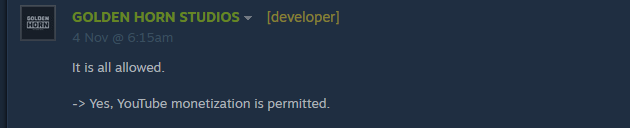
Golden Horn Studios replies to a creator about gameplay, audio, credits and monetization ↗
Including the ending and crediting the game
The creator also asked about showing the ending. The studio opened its reply by allowing the proposed uses and did not ask them to cut the finale. If your walkthrough includes the last decision, you can place a spoiler warning before that chapter so viewers can stop there.
For the description, the studio suggested mentioning the game name as a courtesy. A line such as "Game: Potato Please by Golden Horn Studios" identifies the title and developer. The reply does not prescribe a credit template.
Golden Horn Studios replies to a creator about gameplay, audio, credits and monetization ↗
Keeping the game sound in a recording
The developer answered a question about leaving the original music and effects audible during a commentary run. It described the music it used as public domain. Keep the original capture until you have checked the actual upload: another player received a recording-specific claim even though the radio music came from normal gameplay. The developer reply gives the studio position, while your upload details tell you if a platform match has occurred.
Golden Horn Studios replies to a creator about gameplay, audio, credits and monetization ↗
Steam creator report: a Content ID match during the Borodin quartet ↗
Checking the Borodin quartet match
A player reported an ORFIUM (HEXACORP LTD) claim on behalf of Pantheon Classics for the Notturno movement of Borodin’s String Quartet No. 2. In YouTube Studio open Content, select the notice for the affected upload, and open its details. Note the identified recording, claimant, restriction and time range. Play that part of your own capture. The report documents a particular match and has no posted resolution from the developer. A different recording or time range needs its own check.
Steam creator report: a Content ID match during the Borodin quartet ↗
Keeping your voice when removing claimed radio audio
Save a local copy of the complete edit first. In YouTube Studio open the claim details, choose Take action, then Erase song. Choose the option to remove just the song, and preview the marked part to hear whether your narration survives. Muting all sound also silences voice and game effects in that interval. Save only when you accept the preview: YouTube says saved Studio edits cannot be reverted. After processing, reload the video details and check the claim status. If the song could not be isolated, use the local master to decide whether trimming that stretch is acceptable.
Steam creator report: a Content ID match during the Borodin quartet ↗
Checking whether a claim is a channel strike
In YouTube Studio, inspect the notice for the specific upload. A Content ID claim by itself usually does not create a channel strike. A strike involves a copyright removal request and a removed video. The Potato Please player reported a Content ID claim; the thread does not say the upload was taken down. Follow the status and actions displayed for your own video before deciding what to do.
Creator identifies a Borodin quartet match during recorded gameplay ↗
YouTube Help: distinguish Content ID claims from copyright strikes ↗
If you think the radio recording was misidentified
Review the exact recording credited to the claimant and the timestamps in your upload. Compare the claim to what you actually captured and retain any documentation that applies to that recording. YouTube accepts disputes on specified grounds, including misidentification or having the necessary rights. The developer’s general gameplay permission gives context but does not identify the particular performance in the claim. If you do submit a dispute, YouTube says the claimant reviews it; the Steam thread supplies no result or guarantee.
Creator identifies a Borodin quartet match during recorded gameplay ↗
A creator asks the studio about recording their game and commentary ↗
YouTube Help: grounds for a Content ID dispute and who reviews it ↗
Compare the territories and timestamps before editing the footage
Open each separate row under Copyright for your playthrough. Write down the claimant, matching passage, timestamps, countries and restriction shown. YouTube says different rights owners can claim the same segment in different territories. If you see one claim on a Borodin passage and another at a different timestamp, listen to those passages separately before editing. A claim against this particular game recording was reported by a player. That report does not establish the identity of a claimant on your upload.
Steam creator report: a Content ID match during the Borodin quartet ↗
Replace the matched audio while keeping the sequence of actions visible
Save the original file, open the affected claim in YouTube Studio and choose the replacement-song action if offered. Select an available Audio Library recording, position it over the claimed passage and preview the entire machine demonstration. Check whether the narration and lever or motor cues remain intelligible in your chosen mix. The claimed audio must be fully replaced for that edit to clear the claim. After processing, recheck the restriction on the uploaded video. Studio edits saved under YouTube's current policy cannot simply be reverted.
Steam creator report: a Content ID match during the Borodin quartet ↗
Sources
- Golden Horn Studios replies to a creator about gameplay, audio, credits and monetization steamcommunity.com
- Steam creator report: a Content ID match during the Borodin quartet steamcommunity.com
- YouTube Help: review and remove claimed audio support.google.com
- YouTube Help: distinguish Content ID claims from copyright strikes support.google.com
- YouTube Help: grounds for a Content ID dispute and who reviews it support.google.com
- YouTube: Content ID claims and territorial differences support.google.com